
Data Review Tables allow you to review, filter, and take bulk actions on form data within Study Runner. They help streamline data cleaning and query management tasks.
User Roles:
Data Managers, Clinical Research Coordinators (CRCs), Investigators, Data Entry Persons, and Data Specialists.
Monitors can view and close queries based on their study role, but do not have permission to remove or restore forms.
Site/Study Viewers do not have access to Data Review Tables.
Potential Uses
You can use Data Review Tables to efficiently manage and validate large volumes of study data. Common use cases include:
- Remove erroneous form data after an import
Quickly review imported data in bulk (for example, data from connected devices). If you identify issues, you can remove incorrect form data without opening each form individually. After correcting the issues in the source file, re-import the data accurately. - Bulk-close automatic queries
When automatic queries appear incorrectly and the underlying issue has been resolved, you can close these queries in bulk to keep your data clean and up to date. - Review information to catch potential errors
Create a Data Review Table to track a participant’s weight from visit to visit and check for potential errors. If an error is suspected, you can add a query or update the value as needed.
💡 Tip: Use Data Review Tables to efficiently validate large datasets and resolve multiple records at once.
Data Review Tables are created and configured by a Data Manager in Study Designer. Once the study is published, authorized users can access the table from the Tasks menu in Study Runner.
Table Features
- Filter and sort data by any column
- Bulk-close open queries
- Remove or restore primary forms in bulk
- Drill into data points within source forms
- Download the full table for offline review or printing
Each custom table includes items from one primary form, which can exist in:
- Exactly one repeating event, or
- One or more non-repeating events
Tables may also include items from additional forms in non-repeating events.
⚠️ Warning: If any forms in a table have permission tags, the entire table is accessible only to users with those tags.
Accessing Data Review Tables
- In Study Runner, open the Tasks menu.
- Under Data Review Tables, select the desired table name.
- The Data Review Tables section appears only if a table has been created and you have access to it.
ℹ️ Note: A user’s ability to edit, review, or view forms accessed through a Data Review Table depends on their form access level (Edit, Review, Read-only) assigned in User Roles.
Sorting, Filtering, and Reviewing Tables
- Click Active Records and select Removed Records to view removed or archived forms.
- To return to the active view, click Removed Records again and choose Active Records.
- Click the column header or arrows to sort data ascending or descending.
- Click the red X to clear a filter.
- Click the Filter icon to filter records by specific values.
- Choose your filter criteria and click Apply.
- Click the icon again to update the filter or select Clear to remove it.
- Filtering by Empty or Non-Empty Values:
For free-text items, the filter menu includes Is Empty and Not Empty to help identify records based on whether a value has been entered.
ℹ️ Note: Some filter logic is restricted based on compatibility with additional rules.
Filter Condition Availability Effect Additional Rules Is Empty Only when no filter rule is configured Shows rows with no value Cannot be combined; “Add Rule” hidden Not Empty Always available Shows rows where a value is present Can be combined with other rules
- Filtering by Empty or Non-Empty Values:
- Column headers display either the required data label or the item name.
- Hover over a column heading to see which form the information originates from.
- The hover text shows “primary form” when it references the table’s primary form.
- Click a cell value to open the form. Your ability to edit, review, or view the form depends on your assigned form access level (Edit, Review, or Read-only).
- For Select One item types, the label and coded value appear together.
- Click a Participant ID to open the participant’s record on the Participant Details page.
- Click the Download icon to export the table for offline review or printing.
When a Data Review Table is downloaded, the export includes all status indicators shown in the on-screen table. If a form or event is locked, signed, removed, or archived, these indicators are added to the base status in the same cell of the exported file. Each indicator appears in parentheses following the status.
Examples:- initial data entry (removed)
- completed (locked) (signed)
- data entry started (archived)
If more than one indicator applies, they are listed in alphabetical order.

ℹ️ Note: Forms with a status of Not Started do not appear in the Data Review Table.
Selecting Form Rows and Queries
- Select the checkbox in the header to select all form rows and queries.
- Select an individual form row to include its associated queries.
- Select checkboxes beside individual queries to act on them.
- Click the item column header checkbox to select all open queries for that item.

⚠️ Warning:
- Locked primary forms cannot be removed or restored, so their checkboxes are disabled.
- Queries within locked forms cannot be closed in bulk.
Bulk Remove and Restore Primary Forms
To remove forms:
- From Active Records, select the checkboxes for the rows to remove.
- Click Remove Forms.
- Enter a reason for removal and click Yes to confirm.

To restore forms:
- From Removed Records, select the checkboxes for the forms to restore.
- Click Restore Forms.
- Enter a reason for restoration and click Yes to confirm.

⚠️ Warning: Removing a primary form deletes the entire form, even if not all items are displayed in the table.
Associated non-repeating event data from other forms will not be removed.
Viewing Queries
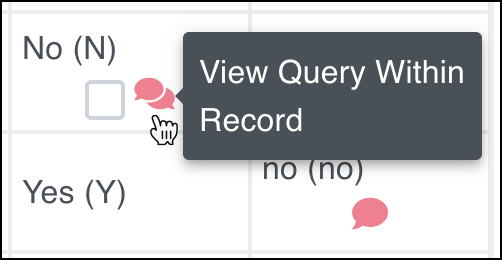
- Click the Queries bubble to open and respond to individual queries.
- Queries in locked forms open in read-only mode and cannot be responded to.
Bulk Close Queries
- Select checkboxes for the queries to close.
- To select all queries for a form row, check the form row box.
- To select all queries for an item, check the item column box.
- Click Close Queries.
- Enter a comment and click Yes to confirm.

ℹ️ Note: Monitors can view and close queries based on their role permissions, but they do not have permission to remove or restore forms. Editing or reviewing forms opened from a Data Review Table is governed by the user’s form access level assigned in User Roles. For more information, refer to Managing Form Access and Permissions.
For more information on creating Data Review Tables as a Data Manager, refer to Create and Configure Data Review Tables.