
Guidance for 21 CFR Part 11 Compliance with OpenClinica Consent:This section describes how OpenClinica supports 21 CFR Part 11 compliance for electronic signatures in eConsent forms. Key Requirements:
You can meet this requirement by:
For more information on configuring forms to capture first and last name in a secure manner for use in participant eConsent signatures, refer to Designing Contact Data Forms. |
Once OpenClinica Consent has been activated, Data Managers can designate Forms within non-repeating Visit Events as eConsent Forms using the Form Template.
⚠️ Limitation: eConsent forms are not available for common events or repeating visit events.
Configure an eConsent Form:
- Use the latest Form Template
- In the Survey tab, configure a multi-select checkbox item as follows:
- type column: “select_multiple EC”
- bind::oc:external column: “signature”
- bind::oc:itemgroup column: (must be blank)
- readonly column: (must be blank)
- required column: Optional – flag as required if needed for completion
- item name/label: Any name or label may be used
- In the Choices Tab:
- Use the list_name that matches the Survey Tab type (“EC” in the example above).
- Add only one choice (to display a single checkbox).
- The choice name must be “1” (without the quotation marks)
- The choice label can be any text prompt (this is what the participant sees).
- Make any additional changes needed in the form definition.
- Upload the form to a non-repeating visit event.
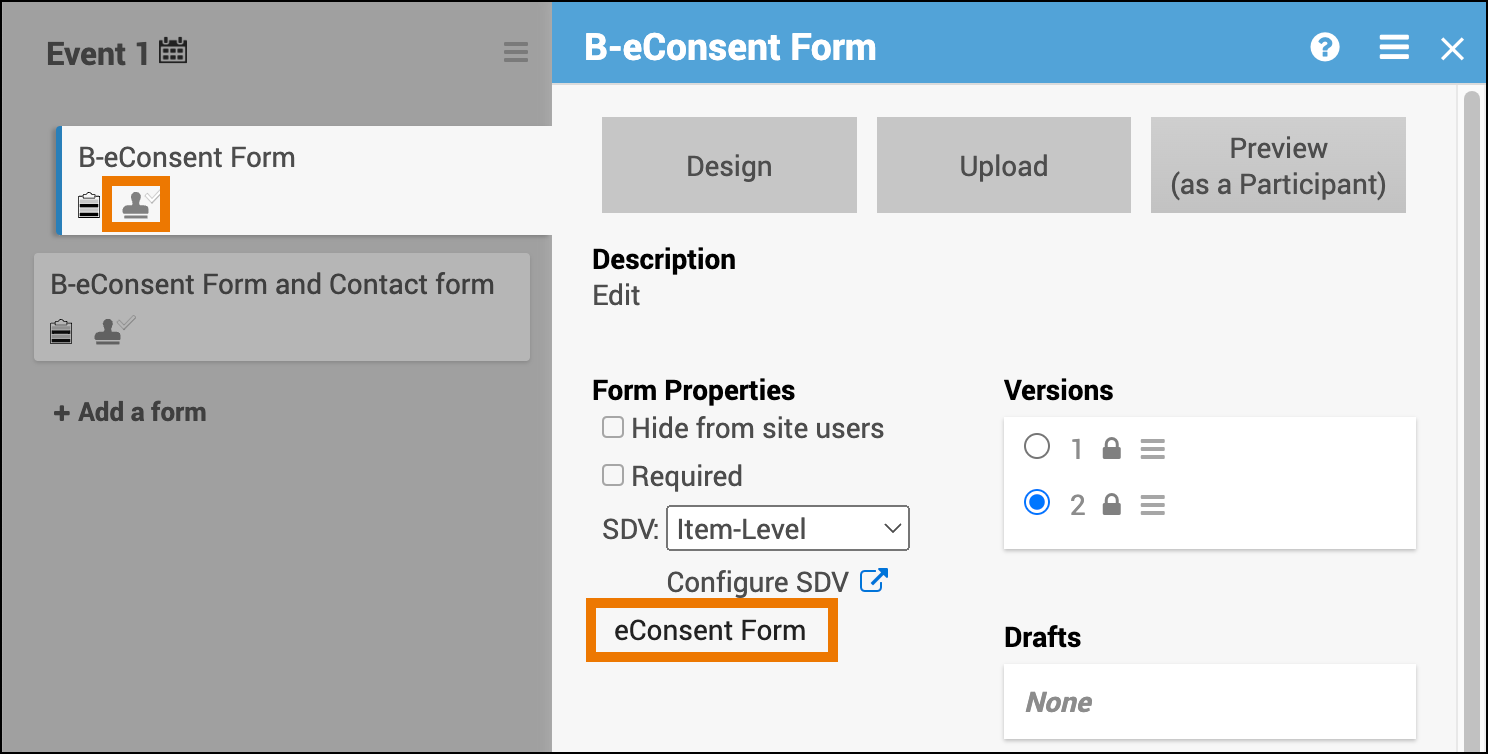
- After upload, the Form Card automatically indicates that the form is an eConsent form
⚠️ Important: The eConsent designation cannot be changed in the Form Card or Study Designer. To update, you must edit the form definition and re-upload the form.
Behavior and Limitations
The following behaviors and limitations apply specifically to eConsent forms within OpenClinica:
- Contact data items and permission tags work as usual.
- All users can view eConsent status on the Participant Matrix.
- Queries cannot be added to signature checkbox items.
Replacing a Form Definition (eConsent ↔ Non-eConsent
In limited cases, you can replace a form with another that has a different eConsent designation. This is only allowed when all conditions are met
- The form has exactly one version (active or archived).
- The form has not been published to production (draft or test environments only).
- The replacement form uses the same version number as the existing form.
Outcomes
- From eConsent → non-eConsent: All eConsent-specific features (icons, consent statuses) are removed from the Participant Details Page (PDP), Participant Matrix, and form cards
- From non-eConsent → eConsent: The eConsent features are added to those areas
ℹ️ Note: If you attempt to change a form’s eConsent status without meeting the required conditions, the system will display a standard error message indicating that the form type cannot be changed.