
13.5.1 System Architecture for Data Mart
The OpenClinica Data Mart takes data that is extracted from OpenClinica, converts it to SQL, and inserts the resulting data into a database for reporting purposes. The data flows in the following manner:
- OpenClinica exports data in the CDISC ODM 1.3 with OpenClinica Extensions format.
- OpenClinica converts the data via an XML style sheet to SQL, and loads the data into the Data Mart.
- The data user accesses the data from the data warehouse using a business intelligence or SQL reporting tool. If these tools are based on a client computer, access to the data warehouse can be via Open Database Connectivity (ODBC).
Data Mart System Diagram:

With the Postgres client pgAdmin, you can make a direct connection to the Postgres database containing the Data Mart. An alternative solution is to set up an ODBC connection to the database, for use with desktop business intelligence or SQL report writer tools.
If your organization has selected the Postgres database output option for the Data Mart, the system administrator from the OpenClinica, LLC client services team provides your system administrator with the information to set up the ODBC connections and the direct database connections from pgAdmin. Please see your system administrator for access to the database.
13.5.2 Loading Data into the Data Mart
For instructions, see Define Dataset in the OpenClinica User Documentation. Specific notes applicable to the Data Mart are:
- Select all Items in the Study.
- Select all Attributes.
- The dataset name will become part of the name of the schema in the data warehouse.
To perform a single, manual export, see instructions at Generate and Download Dataset in the OpenClinica User Documentation. Select the Data Mart format.
To set up a recurring scheduled job, see instructions at Scheduled Export Jobs in the OpenClinica User Documentation. Select the Data Mart format.
13.5.3 Data Mart Schema for Study
Each OpenClinica dataset extracted from an OpenClinica Study creates its own database schema within the Data Mart. The schema name consists of the Study Protocol Name, plus the name of the OpenClinica dataset.
IMPORTANT:
Potential Conflicts with Table and Column Name Maximum Lengths
PostgreSQL has a maximum length of 63 characters for the names of columns and tables. The Datamart generates table and column names based a composite of the CRF, group, item, and (for multi-selects/checkboxes) the item’s response options text. If you have long names for these objects within your CRF, Data Mart may have problems not creating the required tables/columns. For instance, before adding a column to a table, Postgres checks the column name length for validity. If the column name is too long, Postgres will truncate the proposed column name, and attempt to create the column using the truncated name. The problem is that if the truncated column name is found to already exist, instead of skipping adding the column gracefully, the SQL script may error out.
Essentially the combination of the CRF, group, item names and Response Options text can cause a column name to be long enough to be truncated. If two different columns get truncated to the same name the Datamart will not work as expected. We suggest using names that are a short as possible to avoid this conflict.
In OpenClinica 3.1.4 we have made some changes to the way that Data Mart handles very long column names for checkbox/multi select options this change only affects checkbox and multi-select options. To prevent the long column names in the SQL scripts from causing errors, we have added logic when building the column names which does some truncation if the column name would exceed 63 characters. The column names are built by concatenating the Item Name and the Response Options Text. If the Item Name exceeds 30 characters, then it will be truncated and a unique number will be added to it. If the Response Options Text exceeds 30 characters, then it will be truncated and a unique number will be added to it. For any columns that have been truncated, they will be added to a new mapping table. This mapping table has been built to make it easy to reference any items that have been truncated. The mapping table contains the Column name (as truncated), the original Item Name and original Response Options Text.
Additionally in 3.1.4, CRF table names will now be truncated to prevent long names from causing Data Mart errors. Currently table names can be comprised of the following elements concatenated together:
- CRF Name
- Item Group Name
- ‘_resp_opts’
CRF & Item Group Name concatenations exceeding 52 characters will be truncated with a unique number appended to prevent duplicate names. This limit will leave room in the table name for ‘_resp_opts’, in case a separate table for multiselect items needs to be created.
From the PostgreSQL Manual Section 4.1.1, Identifiers and Key Words:
“SQL identifiers and key words must begin with a letter (a-z, but also letters with diacritical marks and non-Latin letters) or an underscore (_). Subsequent characters in an identifier or key word can be letters, underscores, digits (0-9), or dollar signs ($). Note that dollar signs are not allowed in identifiers according to the letter of the SQL standard, so their use may render applications less portable. The SQL standard will not define a key word that contains digits or starts or ends with an underscore, so identifiers of this form are safe against possible conflict with future extensions of the standard.
The system uses no more than NAMEDATALEN-1 characters of an identifier; longer names can be written in commands, but they will be truncated. By default, NAMEDATALEN is 64 so the maximum identifier length is 63. If this limit is problematic, it can be raised by changing the NAMEDATALEN constant in src/include/postgres_ext.h.”
PostgreSQL reserves certain words for creating objects within its database schema, which means that it will restrict you from creating tables named with these reserved words. If you have objects within a CRF (such as item_name, item_group) with these reserved words, Data Mart will not create the required tables/columns. Therefore, we advise that you refrain from using these words as your identifiers of an item during the CRF design. If you wish to use these reserved words for your items in the CRF, you may need to add additional characters in order to differentate it from a reserve word (e.g. name the data item INTEGER_123 instead of INTEGER). For a complete list of PostgreSQL reserved words, please refer to the following link:
http://www.postgresql.org/docs/8.4/static/sql-keywords-appendix.html
Data Mart Study Schema and CRF Tables (Example from pgAdmin):
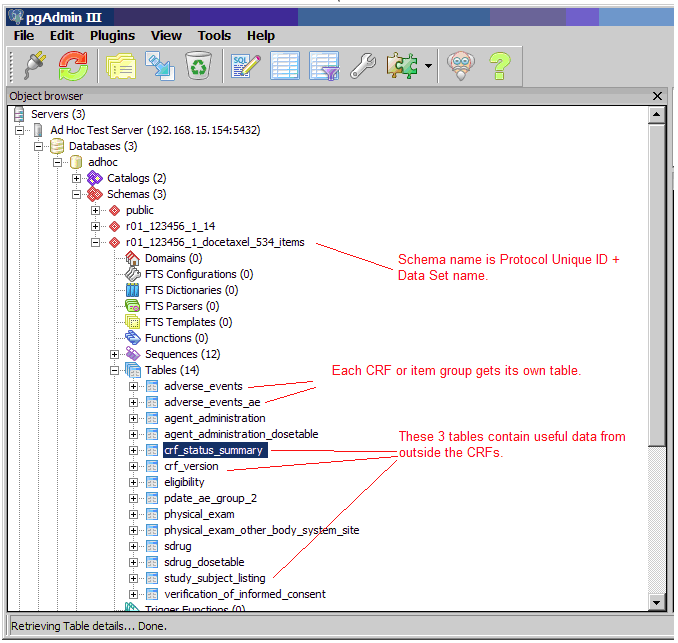
To grant access to specific users for a subset of Study data (for example, only Subjects from a certain Site, or only certain CRFs and data Items) create a special dataset, and create a user Role in the database with access to only that specific schema.
When extracting data in Datamart format, Datamart creates one table for every non-grouped CRF and an additional table for grouped CRF. The maximum non-grouped CRF items count limit is 125. If non-grouped items count in the CRF exceeds the defined maximum limit; single-select labels and multi-select Booleans will be stored in another table.
13.5.4 Data Types
- Date: OpenClinica dates are presented as dates in the Data Mart. This makes it easy to perform calculations and to transform the output format.
- Single-Select or Radio Button: Single-select Items allow selection of a single value from a list, using either a radio button or pulldown control. The possible values are stored as a list of underlying data values (normally integers) and corresponding labels. The Data Mart presents each single-select Item as two columns in the database. The first column stores the value, and the second column stores the label.
- Multi-select or Checkbox: For example, Race – Check all that apply. Multi-select or checkbox Items will appear as one Boolean column per possible selection. The column name will reflect the label, for example, i_dm00_race_asian.
13.5.5 SQL Joins for Related Tables
CRF Table Relationships (Graphical Example from MS Access):

Each row in each CRF table and grouped Item table relates to a particular Study Subject, uniquely identified by Study Subject ID and Study Subject OID. Each CRF table in the Data Mart can be joined to the study_subject_listing table on ssid and ssoid.
Each Item in a group of repeating Items is related to the CRF by the Study Subject ID, Study Subject OID, Study Event OID, Event Ordinal, and CRF Version.
The WHERE clause in the following SELECT statement reflects these joins. When querying data from the database, use WHERE clauses of this form.
SELECT
ssl.ssid,
ae_ungr.event_start_date,
ssl.date_of_birth,
ae_ungr.i_adve_aeyn_label,
ae_grouped.i_adve_aeterm,
ae_grouped.i_adve_aesev
FROM
r01_123456_1_docetaxel_534_items.study_subject_listing ssl,
r01_123456_1_docetaxel_534_items.adverse_events ae_ungr,
r01_123456_1_docetaxel_534_items.adverse_events_ae ae_grouped
WHERE
ssl.ssoid = ae_ungr.ssoid
and
ssl.ssid = ae_ungr.ssid
and
ae_ungr.ssoid = ae_grouped.ssoid
and
ae_ungr.ssid = ae_grouped.ssid
and
ae_ungr.study_event_oid = ae_grouped.study_event_oid
and
ae_ungr.event_ordinal = ae_grouped.event_ordinal
and
ae_ungr.crf_version = ae_grouped.crf_version;
13.5.6 Reporting Status of CRFs and Events
Each schema contains a table listing the status of each CRF and Event (crf_status_summary). Use SQL queries to create valuable reports from this data. For example, this SQL query will show the number of CRFs with each status, by Site:
SELECT
site_name,
sum (crf_status_initial_data_entry)as inital,
sum (crf_status_initial_data_entry_complete) as initial_complete,
sum (crf_status_double_data_entry) as dde_complete,
sum (crf_status_data_entry_complete) as complete,
sum (crf_status_locked) as locked
FROM
r01_123456_1_docetaxel_534_items.crf_status_summary
GROUP BY site_name;
CRF Status by Site (pgAdmin Output Example):
